9. Batch mode¶
batplot batch workflows cover three related jobs:
- Batch export — one figure (or session) per file with
--all - Session save — write
.pklfiles with--save(with or without--i) - Batch edit — open several
.pklsessions of the same kind and sync styles/geometry from one interactive menu
Interactive key details live in Interactive menus; this chapter focuses on when to use batch and what differs from single-session --i.
9.1 Batch export (--all)¶
--all walks a folder and writes one output per matching data file. Default image location is a Figures/ subfolder created next to the data. This is the usual way to prepare many publication figures with the same axis range, wavelength, or style.
--all vs allfiles¶
--all (flag) |
allfiles (keyword) |
|
|---|---|---|
| Purpose | Separate figure/session per file | Put many files on one figure (or expand the input list) |
| Typical | batplot --all --xaxis 2theta |
batplot allfiles --stack --wl 0.259 --i |
| Output | Many files under Figures/ (or many .pkl with --save) |
One combined plot / one interactive session |
They are easy to confuse in speech (“batch everything”) but they do opposite jobs.
What folder is scanned?¶
| Invocation | Folder |
|---|---|
batplot --all … (no path) |
Current working directory |
batplot /path/to/folder --all … |
That folder (EC / histo with --all; XY also batch-exports a sole directory even without typing --all) |
batplot /path/to/folder (XY, no --i) |
Same as XY batch on that directory |
Non-data items are skipped (e.g. .cif, .pkl, style files, scripts). Unknown extensions are still tried as generic X/Y unless excluded.
Output format¶
| Flag | Effect |
|---|---|
| (default) | SVG under Figures/ |
--format png (or pdf, jpg, …) |
Same folder, that raster/vector type |
--save |
Write sessions (.pkl) instead of images — one per file; you pick the folder once |
1D / XY batch¶
Scans common XRD/PDF/XAS-style extensions (.xy, .xye, .qye, .dat, .csv, .txt, .gr, .nor, .chik, .chir, Bruker/XRDML, …). Axis type can come from extension (.qye → Q, .nor → energy, …) or from flags:
generic X/Y for each file → Figures/*.svg
force 2θ axis and the same window on every plot
treat each file as 2θ and convert to Q with Cu λ
Useful companion flags: --xrange, --yrange, --norm, --wl, --readcol / --readcol<ext>, --format.
Electrochemistry batch¶
Requires a mode flag (--gc, --cv, --dqdv, or --cpc / --epc). Processes matching .csv / .mpt / related EC files one figure each:
Tutorial — EC batch peers from demo files
Same GC export for each Neware CSV (what --all --gc produces per file):
batplot B443.csv --gc --out B443.png
batplot B444.csv --gc --out B444.png
batplot B445.csv --gc --out B445.png
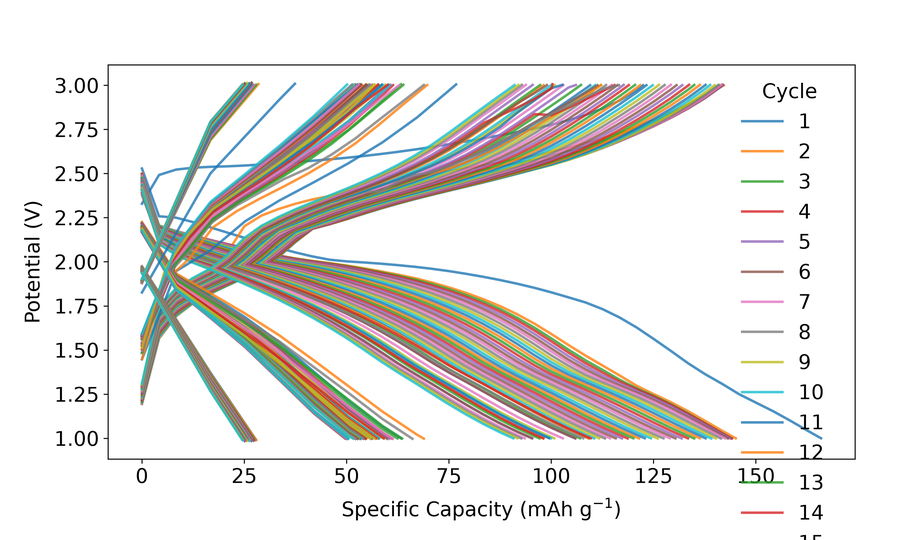
Figure: batch peer 1 (B443.csv --gc)
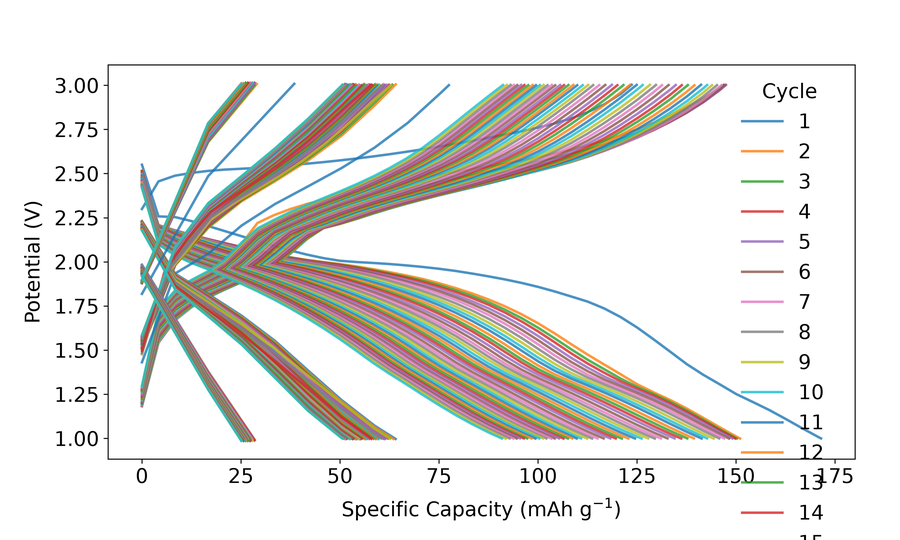
Figure: batch peer 2 (B444.csv --gc)
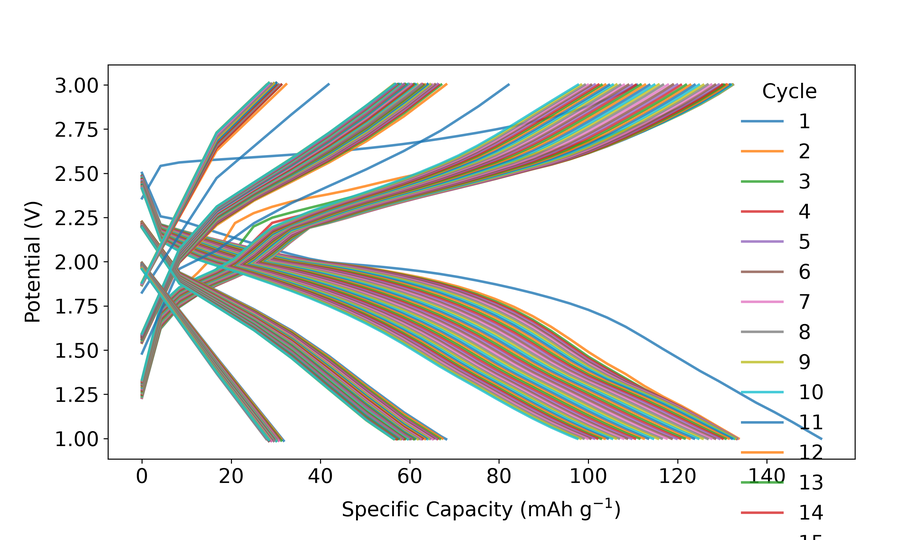
Figure: batch peer 3 (B445.csv --gc)
--mass is required for BioLogic .mpt when specific capacity is needed (same rules as single-file EC).
Histogram batch¶
Needs --histo and a column (--histocol name or 1-based index):
Applying a shared style while exporting¶
Pass a style path as the optional value of --all (same idea as interactive i import):
| Extension | Typical use |
|---|---|
.bps |
Style only |
.bpsg |
Style + geometry (limits, layout, …) |
.bpsh |
Histogram style |
If a file named like the data stem exists beside it (e.g. scan01.xy + scan01.bps), that per-file style can also be picked up when no global --all style… is set.
Applying a style on a normal (non---all) plot works the same way as interactive import:
--all with --i¶
For XY, batplot --all --i expands every matching file in the cwd into one interactive multi-file session (similar spirit to allfiles --i), instead of writing separate SVGs.
For styling many already-saved figures with a shared batch menu, save .pkl sessions first, then open several together — see §9.3 Batch edit.
Quick recipe list¶
9.2 Saving sessions (--save)¶
--save writes the same .pkl sessions as interactive s, without requiring --i:
Naming rules (fact-checked against CLI behavior):
- Single file: default name = data-file stem; you choose the folder when prompted.
--all: one session per file (default names); folder chosen once.- Combined plots (e.g.
allfiles, multi-file GC/CPC,--operando): you must provide a session name.
Reload later:
9.3 Batch edit (multiple .pkl + --i)¶
Edit several saved sessions together. Panels must be the same kind (all GC, all XY, all histo, …):
Typical uses: set the same font, frame size, colors, or spine settings on every panel, then e / s / p for all.
What batch can sync¶
Batch keeps most style/geometry keys for that mode and always offers Options I/O (e/p/i/s/b/q, plus n crosshair when listed). Full printed keys per batch kind are below.
Not available in batch (use single-session --i)¶
| Mode | Keys not in batch (or strongly limited) | Why |
|---|---|---|
| XY | sm, a (rearrange), o (offset), d (derivative) |
Per-curve data transforms / ordering |
| XY CIF | Full CIF editor; batch cif is add-only |
Keep peer sessions simple |
| EC | a (capacity/ion), 2d (open dQ/dV contour) |
Dual-axis / companion figure |
| EC | sm |
Allowed only if the batch is dQ/dV (not GC/CV) |
| CPC | a (add file(s)) |
Adding data is single-session |
| CPC | Dedicated k row |
Spine colors via color / WASD paths instead |
If you type a rejected key, batplot tells you to use single-session --i.
9.4 Batch interactive menus — keys per mode¶
Header looks like Batch … Menu (N plots). Nested subkeys are the same as the single-session chapters unless a row below says otherwise.
Full single-session trees: XY · EC · CPC · Operando · Histogram.
Options column (every batch kind)¶
These keys appear in the Options column of every batch menu. Nested prompts match single-session behavior unless a difference table below says otherwise.
| Key | What it does | Example |
|---|---|---|
n |
Toggle the crosshair helper on the active figure. | Type n once to show coordinates; type again to hide. |
e |
Export the current batch figures (paths and formats as prompted). | Type e, choose PNG/PDF, confirm the folder. |
p |
Export the shared style settings to a style file. | Type p, then save e.g. batch_style.json. |
i |
Import a previously exported style onto the batch. | Type i, pick batch_style.json, confirm apply-all. |
s |
Save all (or selected) sessions as .pkl files. |
Type s, accept the suggested folder, confirm. |
b |
Undo the last batch styling change when undo is available. | Type b after a mistaken color change. |
q |
Quit the batch interactive menu. | Type q. |
os / ops / … |
Overwrite using the last save/export paths (only after a prior save/export in this session). | After exporting once, type os to overwrite the same paths. |
Batch XY — printed keys¶
| Column | Keys shown | What this column is for | Example |
|---|---|---|---|
| Styles | c f l t h g |
Colors, fonts, lines, ticks/spines, help, grid — same subkeys as XY. | Type c, then 1:red to recolor curve 1 on all loaded XY sessions. |
| Geometries | r x y v cif |
Rename, X/Y ranges, visibility, CIF (add-only in batch). | Type x, then 10 70 to set the same 2θ window on every plot. |
| Options | see table above | Export / save / undo / quit shared across the batch. | Type e to export every figure in one pass. |
| Difference vs single XY | What it means | Example |
|---|---|---|
| Rejected if typed | Per-curve data transforms are single-session only: sm, a (rearrange), o (offset), d (derivative). |
Typing o prints a message to use single-session --i instead. |
cif submenu |
Batch CIF is add-only: only a (add) and q are accepted. |
Type cif → a, add a phase; editing/removing ticks needs a single session. |
g |
Grid submenu: p = plot-frame grid, c = figure/canvas grid, q = back. |
Type g → p to toggle the plot grid on all XY figures. |
Batch EC — printed keys¶
| Column | Keys shown | What it means | Example |
|---|---|---|---|
| Styles | f l · sm only if dQ/dV · t k h d · v if multi-file · g |
Fonts, lines, optional smooth, ticks, spine colors, help, dash, visibility, grid. | In a dQ/dV batch, type sm then 1 for moving-average smoothing on all contours’ parent style path. |
| Geometries | c r x y |
Cycles/colors, rename, X/Y limits — see EC. | Type c → 1-10 to keep cycles 1–10 on every GC in the batch. |
| Options | standard + o overview unless the batch is dQ/dV |
Overview (o) is for GC-style batches, not dQ/dV contour batches. |
On a GC batch, type o then c for a capacity table; on dQ/dV batch, o is refused. |
| Difference vs single EC | What it means | Example |
|---|---|---|
| Rejected | a (capacity/ion dual axis) and 2d (open a new contour companion) are single-session. |
Typing 2d in batch tells you to open one .pkl with --i instead. |
sm |
Allowed only when the batch kind is dQ/dV. | On a dQ/dV batch, type sm then 1; on a GC batch, sm is rejected. |
o on dQ/dV batch |
Overview is GC-oriented and not available. | Type o on a dQ/dV batch → GC-only message. |
Batch CPC — printed keys¶
| Column | Keys shown | What it means | Example |
|---|---|---|---|
| Styles | f l m d ry t h · v if multi · g |
Fonts, lines, markers, dash, right-Y efficiency, ticks, help, visibility, grid. | Type ry to show efficiency on every CPC plot in the batch. |
| Geometries | c r x y ie |
Cycles/colors, rename, limits, invert efficiency — see CPC. | Type ie to invert the efficiency axis across the batch. |
| Options | standard + o |
Shared options plus overview. | Type o → c for capacity/efficiency summaries. |
| Difference vs single CPC | What it means | Example |
|---|---|---|
| Missing | No a (add file) and no top-level k; color spines via c → s or WASD/t paths instead. |
To add another CPC file, open one session with --i and use a; in batch, type c then spine-color helpers if offered. |
Batch Operando¶
Same keys and subkeys as operando single-session, including nested tables there (each with an Example column). Side-panel columns (e / el / …) appear only if the loaded sessions have an EC panel.
| Situation | What it means | Example |
|---|---|---|
| Sessions with EC panel | Full four-column menu (Styles / Operando / Side Panel / Options). | Type er to rename the EC panel X/Y titles on every matching session. |
| Contour-only sessions | No Side Panel column; e-panel keys are unavailable. |
Type or (not er) to rename contour axis titles. |
Batch Histogram — printed keys¶
| Column | Keys shown | What it means | Example |
|---|---|---|---|
| Styles | c f a l t g |
Bar colors, fonts, alpha, density line, ticks, grid — see histogram. | Type c → bar:steelblue on every histogram. |
| Geometries | w r x y |
Bin width / bins, rename, X/Y ranges. | Type w, then bins=40 to use 40 bins on all plots. |
| Options | standard including n crosshair |
Same Options table as above; crosshair is available. | Type n to read bin centers under the cursor. |
Nested t → h display toggles still work (see histogram menu).
Batch dQ/dV 2D contours¶
| Column | Keys shown | What it means | Example |
|---|---|---|---|
| Styles | oc v t k l f g r |
Colormap, visibility, ticks, spine colors, lines, fonts, grid, rename. | Type oc then inferno to set the colormap on every contour. |
| Contour | ox (potential window) oy oz or |
Potential / scan / intensity windows and rename — same ideas as single dQ/dV 2D. | Type ox, then 2.5 4.2 for the potential window. |
| Options | standard | Export / save / undo / quit for the whole contour batch. | Type s to save all styled contour sessions. |
No CIF, peaks, or EC side panel. Create contours from a single dQ/dV session with 2d, save .pkl, then open those files together for batch styling.